Showing posts with label Windows 7. Show all posts

Wednesday, October 10, 2012

Windows 7: One way ping

I have two machines connected to the same wireless network:

  • Machine1: SO: Windows7 , IP 192.168.10.20
  • Machine2: SO: Windows7 , IP 192.168.10.11
#Ping from machine1 to machine 2
>ping 192.168.10.11
Pinging 192.168.10.11 with 32 bytes of data:
Reply from 192.168.10.11: bytes=32 time=362ms TTL=128
Reply from 192.168.10.11: bytes=32 time=74ms TTL=128
Reply from 192.168.10.11: bytes=32 time=99ms TTL=128

#ping from machine2 to machine1
>ping 192.168.10.20
Pinging 192.168.10.20 with 32 bytes of data:
Request timed out.
Request timed out.
Request timed out.
Request timed out.

Ping statistics for 192.168.10.20:
    Packets: Sent = 4, Received = 0, Lost = 4 (100% loss)

I solved the problem enabling a firewall rule in the machine1 following these steps:

1. Click on Start Icon
2. Type "Windows Firewall"
3. Click on Windows Firewall with Advanced Security
4. Click on Inbound Rules 
5. Look for the following rule:
    • Name: "File and Printer Sharing (Echo Request - ICMPv4-In)"
    • Profile: "Private,Public"
6. Right Click on the rule
7. Click on "enable rule"

Resource:


Wednesday, October 3, 2012

Windows 7 : Enable Telnet Client

When you try yo execute telnet command:


C:\Users\John>telnet localhost 80

You get:

'telnet' is not recognized as an internal or external command,
operable program or batch file.

Do this:


  1. Start
  2. Control Panel
  3. Programs And Features
  4. Turn Windows features on or off
  5. Check Telnet Client
  6. Click 'OK' button

After that you can start Telnet via Command Prompt.

Resource:
http://www.fettesps.com/windows-7-enable-telnet/

Thursday, August 9, 2012

Windows 7: You need to format the disk in drive before you can use it

If you get this error:

"You need to format the disk <DriveLetter> in drive before you can use it"


Just follow the followoing steps :

1. Go to start button on windows.
2. Type "cmd"  and right click on "cmd" search result icon and click "Run as Administrator"
3. C:\Windows\system32>
4. Now type :     chkdsk <Your hard disk letter>: /f

For e.g If my hard disk is named "f" then just type ----------   chkdsk f: /f

Try it out...I guess it will work.

Reference:
http://answers.microsoft.com/en-us/windows/forum/windows_vista-system/you-need-to-format-the-disk-in-drive-j-before-you/4e153784-3217-4425-9c39-48030af82a13

Thursday, October 20, 2011

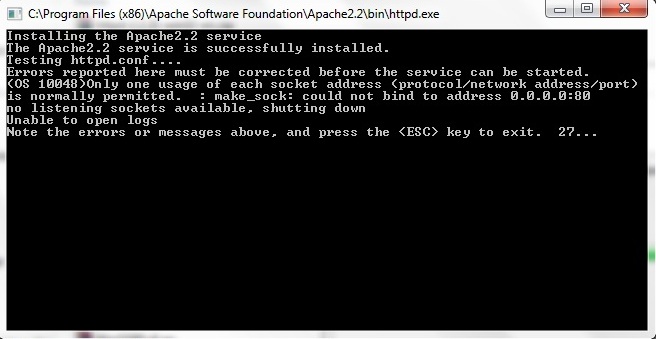
Apache Error: Could not bind to address 0.0.0.0:80 on Windows 7

If you get this error when installing apache on windows 7


1. Just continue the installation.
2. When it finish , go to the installation directory i.e "C:\Program Files (x86)\Apache Software Foundation\Apache2.2"
3. Go to the folder "conf" in the installation directory
4. Open the "httpd.conf"
5. Go to the line that has:
Listen 80
6. Add the word "localhost":
Listen localhost:80
7.Save the changes
8. Start the apache services

Tuesday, August 16, 2011

windows 7: Hide/show disk partitions

Hide:
1.Type “diskpart” in run command box without quotes. (A command window will get opened)
2.Then type “list volume“. (Your hard disk partitioned volumes will be listed)
3.Now type “select volume <volume number>” – (Volume number is the numeric variable which is shown in the volume listing)
4.Type “remove letter <volume letter> – (Volume letter is the alphabetic character of the drive such as C,D,E,F…Z)

Show:
1.Type “diskpart” in run command box without quotes. (A command window will get opened)
2.Then type “list volume“. (Your hard disk partitioned volumes will be listed)
3.Now type “select volume <volume number>” – (Volume number is the numeric variable which is shown in the volume listing)
4.Type “assign letter <volume letter> – (Volume letter is the alphabetic character of the drive such as C,D,E,F…Z)

Reference:
http://www.ethicalhackers.in/downloads/articles/how-to-hide-hard-disk-partitions-in-windows.html

Sunday, July 31, 2011

Windows 7 : The user profile service failed the logon. User profile cannot be loaded

If there is another administrator account that you can log into, then jump to step 7 after logging into that account.
However, if you can't get to any accounts at all, then start at step 1.

1. Restart your computer and hit F8 multiples times until you see a menu-like screen, if you see the Windows splash screen then repeat this step
2. Highlight and hit enter on Safe Mode with Command Prompt. Try logging in there. If it still doesn't work, then go to step17
3. If you are able to login, once a command prompt pops up, type: net user administrator password /active:yes (you can specify whatever password you want for the administrator account.)
4. If you get a message saying "The command completed successfully", then restart your computer by typing: shutdown -r
5. Boot up again pressing F8, but this time choose just Safe Mode.
6. You will be able to login as Administrator with the password you set in Step 3
7. Hit (windows logo)+R
8. Type regedit
9. Once the registry editor opens up, look for HKEY_LOCAL_MACHINE\SOFTWARE\Microsoft\Windows NT\CurrentVersion\ProfileList
10. In the left pane, find the one that starts with S-1-5..... and ends with .BAK; if you don't find one, skip to step 15
11. Right click it and click Rename, then change the .BAK to .BK
12. Right click the one with the same numbering but without the .BAK and add .BAK add the end
13. Right click the one that you renamed to .BK and clickRename, delete the .BK
14. Eventually, you have switched the .BAK from the end of the second entry to the first. That should probably fix your problem.
15. If you didn't find a .BAK then try this: Open Windows Explorer to C:\Users\Default\AppData\Local\Application Data
16. If you find another Application Data below the one you're on, then delete it. That should probably also fix your problem.
17. If you can't login in Safe Mode, then reboot and hit F8 until you see the menu again, then hit enter highlightingRepair Your Computer
18. Wait until all Windows Files finish loading, then hitNext when it asks keyboard language.
19. Try logging in here also, choose your user from the dropdown menu, and type the password, then jump to step 23
20. If that still doesn't work, then if you have your Windows Installation CD still, put it in and restart your computer.
21. Hit F12 until you see a menu of boot options, choose Boot from CD
22. Choose keyboard language then hit next. Find Repair Your Computer from a little below the center left.
23. Choose Open Command Prompt and type: net user administrator password /active:yes (here again you can specify a password)
24. Close the command prompt and click Restart and jump to step 5

To disable the administrator account, type this in an elevated command prompt: net user administrator /active:no

Source:
http://answers.microsoft.com/en-us/windows/forum/windows_7-security/i-receive-error-message-the-user-profile-service/38844b82-a2c1-4fa2-9802-a5318d6f7831

Tuesday, May 17, 2011

Burning iso Images on Windows 7

1. Right click on the .iso file
2. Open with... > Windows Disc Image Burner.
3. Insert yout CD/DVD on your drive
4. Click on "Burn" button.

Wednesday, April 27, 2011

Windows Ping command output detail

The command ping www.google.com might produce this output:

ping www.google.com
Pinging www.l.google.com [64.233.167.99] with 32 bytes of data:
Reply from 64.233.167.99: bytes=32 time=31ms TTL=239
Reply from 64.233.167.99: bytes=32 time=33ms TTL=239
Ping statistics for 64.233.167.99: Packets: Sent = 4, Received = 4, Lost = 0 (0% loss),
Approximate round trip times in milli-seconds: Minimum = 31ms, Maximum = 33ms, Average = 31ms

The first line of output confirms the command you issued Lets look at the first such output line:

bytes = 32 is the size of the ICMP Echo reply

time=... -- This is the time between the Echo Request and Reply. Since networks are dynamic, this time will probably be different for each reply received.

ttl=239 -- ``TTL'' means Time to Live. This is a counter in every IP packet. The sender (ping in this case) sets it to whatever it thinks a reasonable number is (the maximum is 255). Each router subtracts one, and packets get thrown out if TTL ever reaches 0. Assuming we started with TTL=255, this report gives us an estimate of the number of routers we passed through (16 in our example).

Source:
http://www.csis.ysu.edu/~gcperera/cclasses/3723/lab1.pdf
Reference:
http://en.kioskea.net/contents/outils-reseau/ping.php3